How to add Frequently bought together to a Shopify theme
Add a Frequently bought together box with a bundle discount to any Online Store 2.0 theme, step by step, and choose products that sell together.
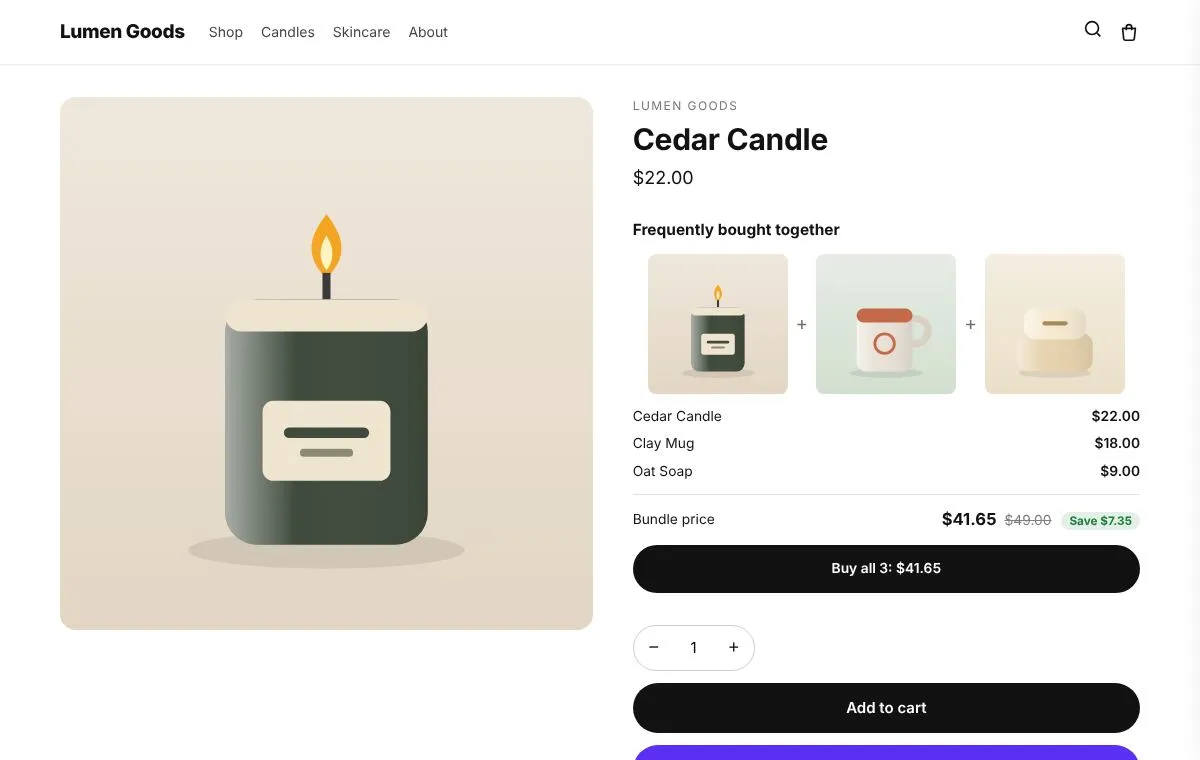
You can add a Frequently bought together box to any Online Store 2.0 theme in about ten minutes: choose two or three products that sell together, give the set a small discount, and switch the box on for each of their product pages. This guide shows the steps with CRO Toolbox and what to think about before you start.
What is a Frequently bought together box?
It is a small panel on a product page that shows the product with one or two items that go with it, their pictures, the total price and one button that adds all of them to the cart. When the set has a discount, the box shows the saving too, for example “Buy all 3: $63.90”.
It works because it answers a question shoppers already have (“what else do I need?”) at the moment they are deciding.
Can I add it without an app?
Partly. Shopify’s free Search & Discovery app lets you choose complementary products, and Dawn and many other themes can show them in a “Complementary products” block. What you don’t get is a discount for buying the set, a single “add all” button, or one box shared by every product in the set. For that you need an app.
How do I add it with CRO Toolbox?
- Install CRO Toolbox and turn on the Conversion boosters app embed (Online Store → Themes → Customize → App embeds). The box is shown by this embed, so there is no block to drag.
- In the app, open Bundles → Create bundle and choose Frequently bought together.
- Under Items, pick the products and how many of each. Two or three items work best.
- Under Discount, set the percentage off the set, for example 10% or 15%.
- Under Box look, choose how the box looks: pictures in a row with a plus between them, or a list; pictures on the left, centred or on the right; boxes around the pictures; a border; your heading; and the button text, such as “Buy all [count]: [price]”. The saving can show as an amount or a percentage.
- Save, then open one of the products on your store. The box shows on the product page of every item in the set.
The live preview in the editor uses your real products and prices, so what you see there is what shoppers see.
How is the discount applied?
Shopify applies it at checkout when all the items of the set are in the cart, through the app’s automatic discount. Shoppers who add the items one by one still get it. The price shown in the box is the price they pay.
Discounts from apps run at checkout when the app is installed from the Shopify App Store (or on Shopify Plus).
Which products should I put together?
- Real pairs from your orders. Look at orders with two or more items and find products that keep appearing together.
- A main product and a small extra. A candle and matches, a serum and a cream, a phone case and a screen protector. The extra should cost less than the main product.
- Two or three items, not five. A short set is easier to say yes to.
- Items in stock. A set with a sold out item can’t be bought as a set.
What discount should I give?
Start small: 10% on a set of two, 15% on a set of three. The goal is to make the set feel like the obvious choice, not to cut your margin on every order. Change one thing at a time and give it a few weeks before you judge it.
How do I know it works?
CRO Toolbox’s Analytics shows sales from each offer and bundle over the last 30 days compared with the 30 before. On the Growth plan and above, the holdout test shows a share of shoppers no app widgets at all, so you can compare like with like.
Questions shoppers ask about these boxes
Can they remove an item? They can add the items separately; the discount applies when the whole set is in the cart.
Does it work on phones? Yes. The box fits the product page on any screen size; the list layout is especially tidy on small screens.
Can one product be in two sets? Yes. Keep the sets clearly different so the product page doesn’t feel crowded.